Landmarks and Famous Places
Iconic towers, monuments, bridges, museums, temples, stadiums, and public buildings can often identify the location of this place quickly.
Upload a photo and identify where this place is located with AI visual clue analysis. The tool checks landmarks, signs, architecture, road details, natural features, and map context so you can find this place from a picture.


Best for landmarks, street views, travel photos, screenshots, storefronts, skylines, and outdoor scenes
This page is built for people who already have an image and want a direct answer, not a broad map tutorial.
When someone searches where is this place located, the intent is immediate. They have a photo, screenshot, social post, travel image, or old picture and want to know the actual location shown in it. They may not know the landmark name, city, or country, so the page should begin with a tool and then explain the evidence.
This page focuses on the place shown inside the image. That is different from your current browser location and from the photographer's exact position. A landmark can be photographed from a bridge, hotel, or park, but the question where is this place usually means identifying the visible place itself.
The workflow is simple: upload the clearest image, review the likely place name, city or region, country, confidence level, and visual clues, then verify the result in Google Maps, Street View, or another map service.
A reliable answer to where is this place located depends on evidence, not just a one-line guess.
Iconic towers, monuments, bridges, museums, temples, stadiums, and public buildings can often identify the location of this place quickly.
Street signs, business names, visible language, road markings, transit symbols, and traffic patterns help narrow the place to a city or country.
Building materials, facade style, balconies, street width, power lines, storefront design, and skyline shape can point to the region.
Mountains, coastlines, rivers, vegetation, weather, terrain, and light conditions can reveal where this place is located.
Photos with distinctive landmarks or strong environmental context give the clearest answers.
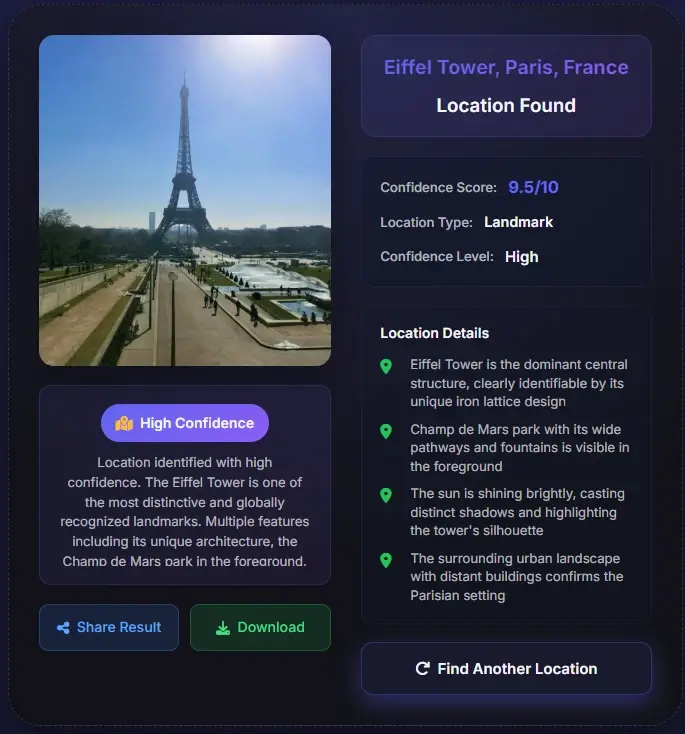
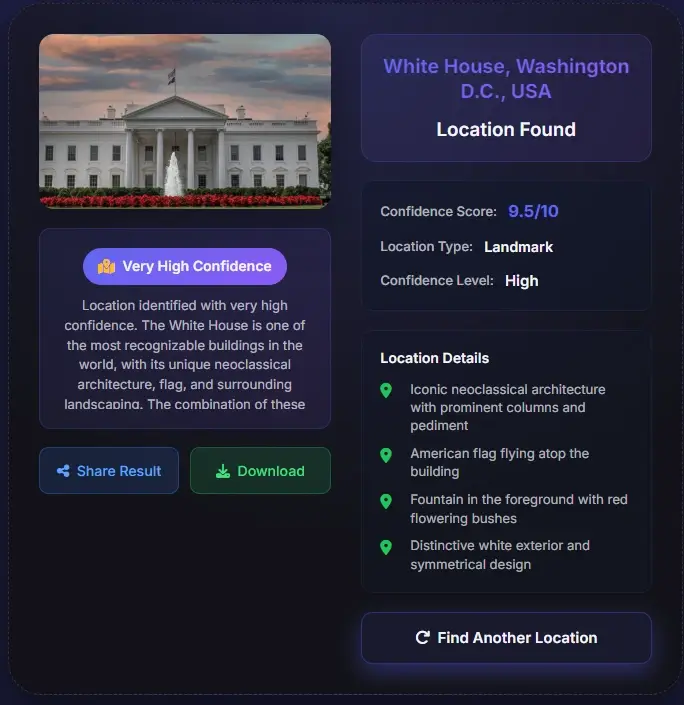
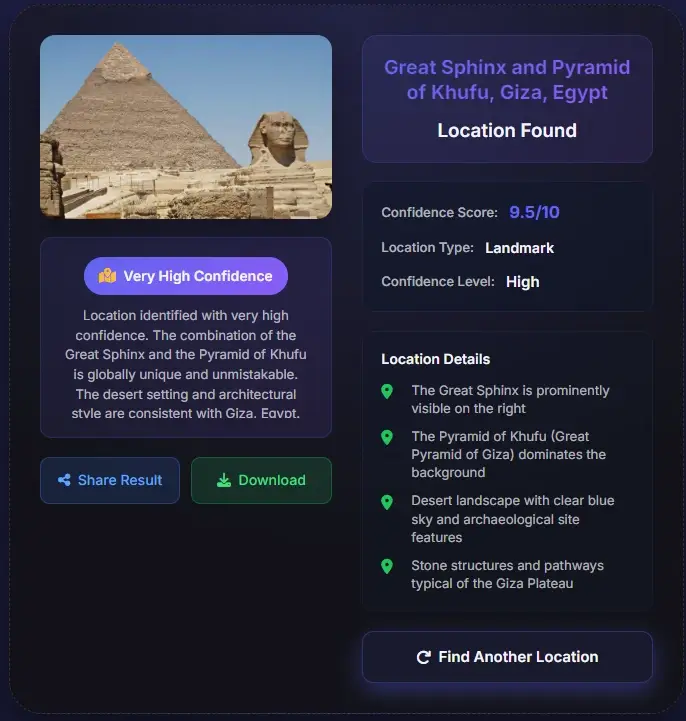
Choose the version that shows the most context. A wider shot usually works better than a tight crop because it may include signs, skyline, roads, buildings, water, mountains, or other clues.
The tool analyzes landmarks, architecture, storefronts, language, road markings, terrain, vegetation, and cultural indicators to estimate the location of this place.
Use the likely place name, city, country, confidence score, and clue list as a starting point, then compare the result with Google Maps or Street View.
Some images lead to a precise place; others should be treated as a likely region or city.
A photo can often be located exactly when it shows a famous landmark, unique building, readable sign, public square, bridge, stadium, temple, museum, or skyline. If the original file still contains GPS metadata, coordinates can also help confirm the location.
The answer is more likely to be approximate when the image shows a generic beach, forest path, indoor room, plain wall, blurred road, cropped storefront, or ordinary residential street. These images may still reveal a country, city, climate zone, or architectural region, but not an exact address.
There is also a difference between photo location and the place shown in the photo. GPS metadata may point to the camera position, while visual analysis identifies what appears in the image. If you ask where is this place exactly, verify both signals before treating the answer as final.
These are the situations where users need a fast and practical place-location answer.
Find the real destination behind a social photo, blog image, or video screenshot before adding the place to your travel plan.
Check whether an image really shows the claimed city, landmark, or country by comparing the result with visible evidence.
Identify the location of this place when an old image, download, or shared picture has no caption or useful metadata.
Use visual clues when a screenshot or reposted image has no EXIF data but still shows signs, buildings, or terrain.
Many web images no longer contain EXIF or GPS data. Screenshots, social media downloads, messaging app images, and edited pictures often remove metadata before you see the file. That does not mean the place is impossible to identify. The tool can still examine landmark shape, building style, visible text, road markings, vegetation, terrain, skyline, water shape, and regional design patterns to help find where this place is located.

A serious place-location result should not stop at a place name. It should tell you why that place matches. If the image shows a church tower, road sign, mountain profile, or distinctive bridge, those clues should appear in the result. If the match is weak, the confidence should be lower. The best answer is a ranked match with evidence, not a confident claim that hides uncertainty.
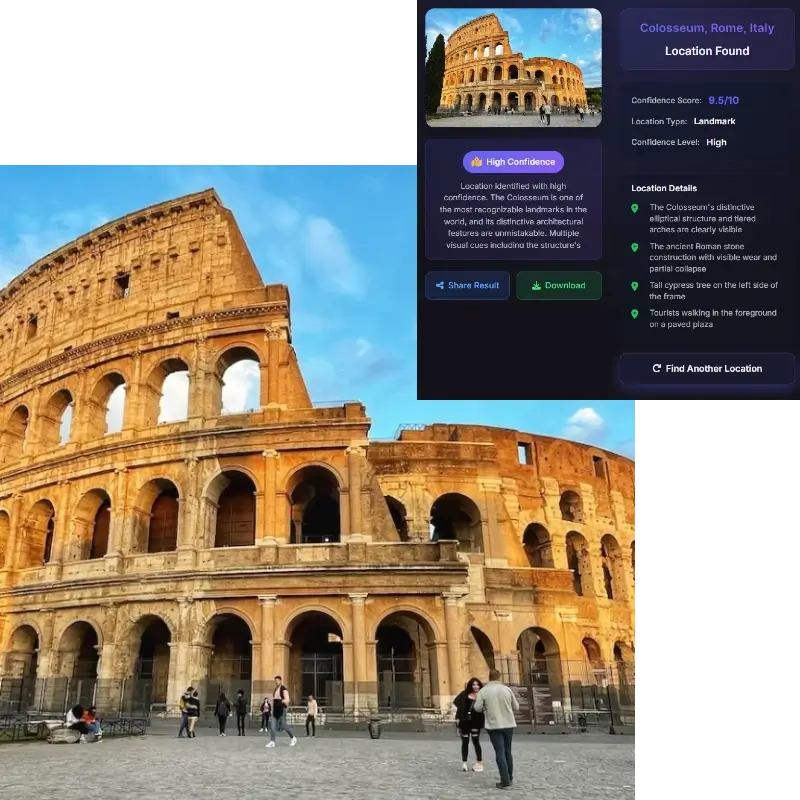
Once the tool identifies a likely place, map verification helps turn a guess into a supported answer. Search the place name, city, or coordinates in Google Maps. Then compare the photo with road curves, building spacing, storefronts, landmark orientation, skyline position, hills, coastline, or nearby public features. If the map view does not match the image, treat the result as a lead.
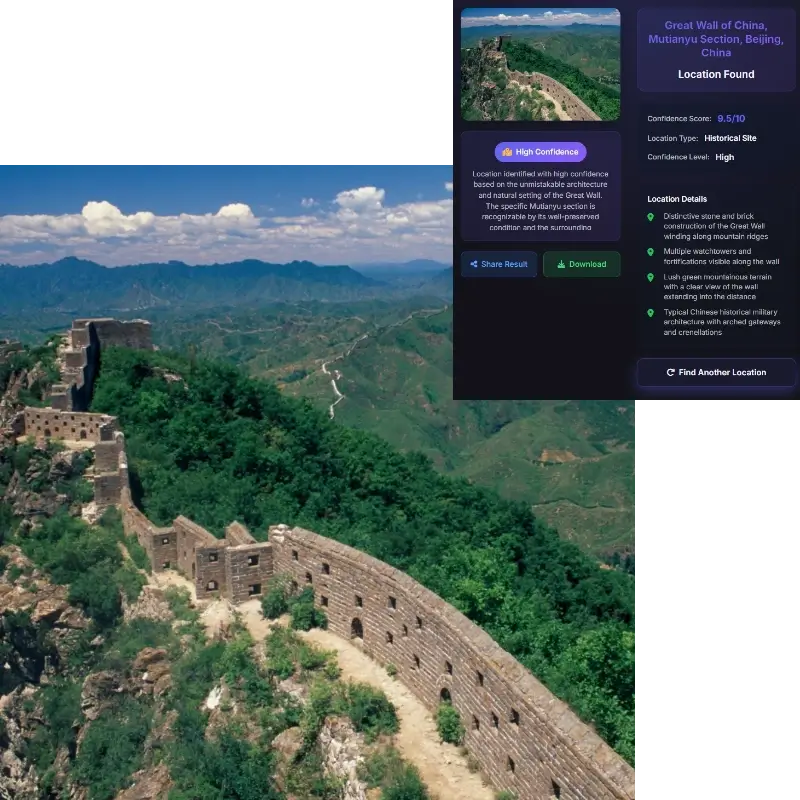
The phrase where is this place located can mean different things depending on the image. If the image shows a landmark, most users want the landmark's location. If the file contains GPS, the coordinates may describe where the camera was. Those are not always the same point. Treat coordinates, visible clues, and map context as related evidence rather than identical facts.
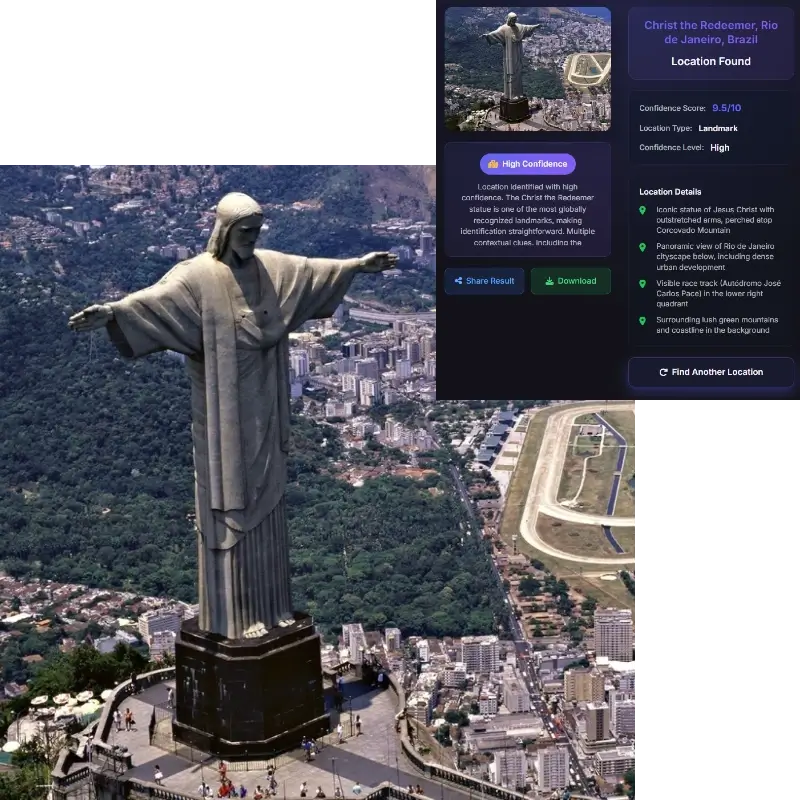
Place identification is useful for travel, learning, and verification, but it should not be used to expose private people or sensitive locations.
Upload the photo and let the tool analyze visible place clues. It checks landmarks, signs, architecture, road details, natural features, and map context, then returns a likely place name, city or country, confidence level, and evidence you can verify.
Yes. EXIF and GPS can help when they exist, but many shared images no longer include them. The tool can still estimate where this place is located by reading language, storefronts, buildings, terrain, vegetation, road markings, and public landmarks.
No. Some photos show famous landmarks or clear signs and can produce a specific answer. Others only support a likely country, city, district, or region. Confidence and clues help you judge the result.
Clear outdoor images with context work best. Useful clues include landmarks, street signs, shop names, road layout, mountains, coastlines, bridges, skyline shapes, transit symbols, and distinctive architecture.
Use the returned place name, city, country, or coordinates as a map search query. Then compare the map or Street View scene with the uploaded photo to confirm the match.
Where the photo was taken can mean the camera position. Where this place is located usually means the visible landmark, building, street, or area shown in the image. Those can be different.
The image may not contain enough unique evidence for an exact match. Generic beaches, forests, suburbs, rooms, roads, and cropped screenshots can share visual patterns across many locations.
Only upload images you own or have permission to analyze. Avoid private homes, personal scenes, or sensitive locations. Even without metadata, visible details can reveal more than expected.
A photo location usually means the camera position. The place shown may be a landmark, building, street, mountain, or coastline somewhere else in the frame. Use camera-location evidence for where the photo was taken and visual-place evidence for what the image shows.