What Website Lets You Upload a Picture to Find the Exact Location?
A practical comparison of AI photo location finders, EXIF GPS checkers, reverse image search, and map verification when you need more than a guess.

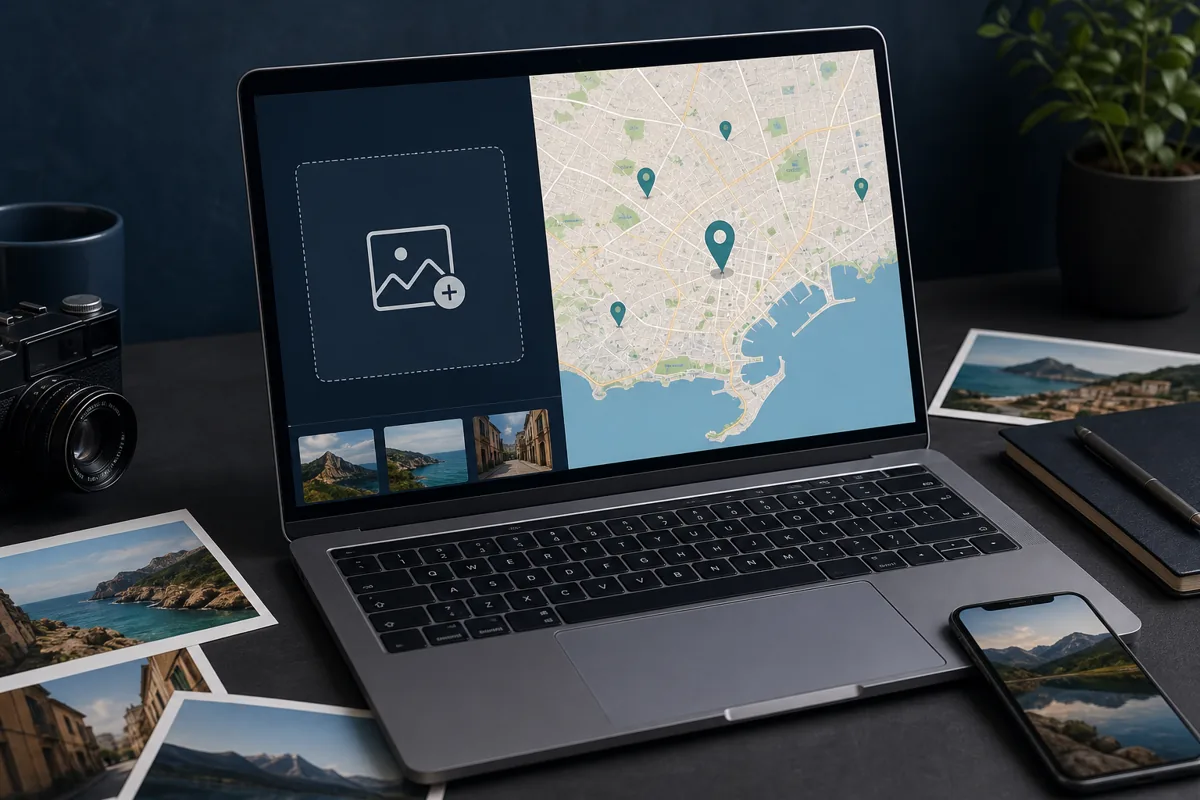
Table of Contents
If you are asking, what website allows you to post a pic and they find exact location?, the honest answer is that you need the right type of website for the photo you have. An original camera file may contain GPS coordinates. A screenshot from social media usually has no metadata and needs visual clue analysis. A famous building may be found by reverse image search. A generic street, cafe, beach, or mountain view may need AI geolocation plus manual verification in maps. This guide explains which website category to use, what each one can and cannot prove, and how to avoid treating a likely area as an exact address.
Quick Answer: Which Website Should You Use?
Use an AI photo location finder when you need a likely place from visible clues such as buildings, signs, roads, skyline, vegetation, coastline, or landmarks. Use an EXIF GPS checker first when you own the original image file. Use reverse image search when you suspect the same picture was published online before. Use maps and Street View to confirm the final answer.
For a simple starting point, upload the image to Where Was This Photo Taken?. It is designed for photos where the visible scene matters. If the original file may contain coordinates, use the Photo GPS Location Checker before relying on visual guesses.
Short verdict
A website can often find a likely location from a picture, but an exact location needs either embedded GPS data or strong visual evidence confirmed on a map.
When an Exact Location Is Realistic
Exact coordinates are realistic when the original photo still contains EXIF GPS metadata, when the image shows a unique public landmark, or when a map view can match fixed geometry such as a building facade, road angle, bridge, mountain outline, coastline, or storefront sequence. In those cases, a website can provide a strong candidate and you can verify it.
Exact coordinates are not realistic when the image is cropped, blurred, heavily edited, indoors without windows, taken in a generic suburb, or copied from a platform that removed metadata. In those cases, the best answer may be a city, region, landmark category, or list of likely places rather than a precise point.
Exact is plausible
Original phone photo with GPS, famous landmark, readable business name, unique building corner, or a street view that can be matched.
Likely area only
Screenshots, reposted images, generic scenery, private interiors, cropped backgrounds, or scenes with repeated architecture.
Photo Location Website Comparison
The best website depends on what kind of evidence the image contains. The table below separates the common options so you do not use a reverse image tool for metadata, or a GPS viewer for a screenshot that never had GPS data.
| Website type | Best for | What it proves | Main limitation |
|---|---|---|---|
| AI photo location finder | Unknown scenes, screenshots, travel photos, street views | Likely place, city, landmark, or visual clues | Needs map verification before calling it exact |
| EXIF GPS checker | Original JPG or HEIC files from a phone or camera | Stored latitude, longitude, capture time, and device metadata | Social apps and screenshots often remove metadata |
| Reverse image search | Images reused online, famous places, travel blog photos | Source pages, matching copies, similar images | No match if the image was never indexed |
| Google Maps or Street View | Confirming a candidate address or landmark | Facade, road geometry, nearby buildings, terrain match | You need a candidate location first |
| Specialized landmark finder | Public landmarks, monuments, tourist attractions | Name and location of the visible landmark | Weak for private homes or generic streets |
How to Verify the Result
Treat every website result as a lead until it survives verification. A confident-looking answer can still be wrong when a city has similar buildings, chain stores, repeated street furniture, or old Street View imagery. The workflow below keeps the evidence layered and reduces false matches.

- Start with the highest-resolution original. Do not crop away signs, road markings, shadows, or neighboring buildings until after the first search.
- Check EXIF GPS if you control the file. If coordinates exist, open them in a map and compare the visible scene.
- Run an AI photo location finder and save the clues it mentions, such as architecture, terrain, language, road layout, or landmark names.
- Use reverse image search on the whole image and then on distinctive details such as signs, logos, towers, statues, or storefronts.
- Open candidate places in maps and compare fixed features: building shape, street angle, roofline, nearby facades, coastline, mountains, and public transit layout.
- Assign a confidence level: exact match, likely place, broad area, or unknown. Do not publish a private address unless there is a legitimate and ethical reason.
Verification rule
A result becomes strong only when at least two independent evidence layers agree: metadata plus map match, or AI clue plus reverse search plus Street View.
Privacy and Safety Limits
Photo location tools should be used for travel memories, research, public landmarks, content verification, and personal organization. They should not be used to expose a private home, identify a person's routine, locate a school, or track someone without consent.
If the photo includes a residence, hotel room, workplace, child, license plate, or sensitive personal setting, keep the result private or use only a broad area. If you are checking your own image before posting, remove GPS metadata and crop unnecessary private clues.
Best Use Cases by Photo Type
A landscape with mountains may need terrain comparison and image search. A building facade may need architecture clues and Street View. A screenshot from TikTok, Instagram, YouTube, or Reddit usually needs visual clue analysis because metadata is gone. A vacation photo from your own camera roll should start with GPS metadata before any AI guess.
For hard cases, combine tools rather than jumping between random websites. Start with metadata, then AI, then reverse image search, then map confirmation. That order is faster and produces a cleaner explanation of why the location is likely.
| Photo type | First website to try | Second check |
|---|---|---|
| Original phone photo | EXIF GPS checker | Map comparison and visual confirmation |
| Social media screenshot | AI photo location finder | Reverse image search and visible text search |
| Famous landmark | Landmark finder or Google Lens | Official map or tourism page |
| Unknown building | AI location finder | Street View facade and neighboring buildings |
| Natural landscape | AI geolocation and image search | Terrain, coastline, mountain, and vegetation comparison |
Try a photo location result with evidence
Upload your image to the photo location finder, then use the checklist above to confirm whether the answer is exact, likely, or only a broad area.
FAQ
References
Last updated: July 2, 2026
Find building location from photo