How to Check GPS Location of a Photo on iPhone, Windows, and Maps
A practical guide to reading EXIF GPS, checking phone photo locations, and verifying where a picture was taken when metadata is missing.

Contents
Use this guide when you have a photo and want to know whether it contains GPS coordinates, how to view them on Windows or iPhone, and what to do when the file has no location metadata. The goal is not just to find a coordinate, but to avoid trusting a wrong coordinate or an unsupported AI guess.
What photo GPS can and cannot tell you
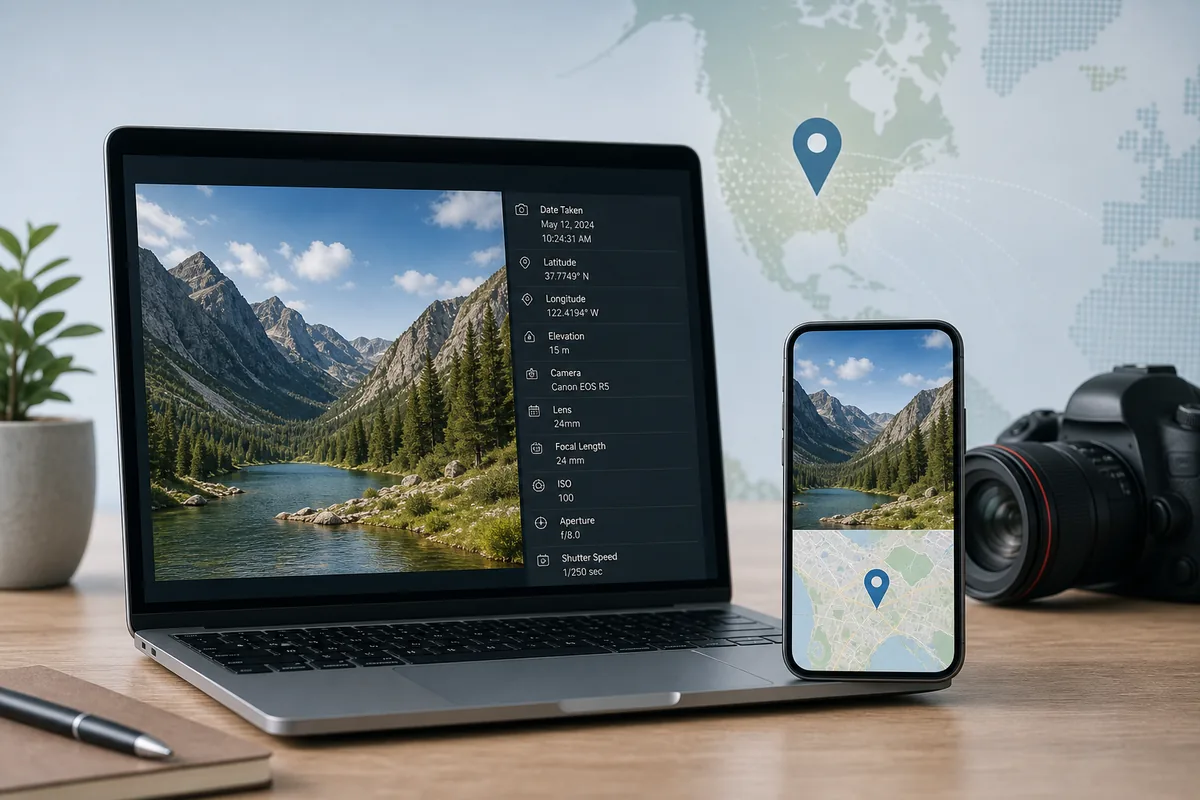
A photo can contain EXIF metadata: capture time, camera model, lens settings, and sometimes GPS latitude and longitude. If the image came straight from a phone or camera and was not stripped by a messaging app, those coordinates can point to the capture area quickly.
GPS is not proof by itself. Coordinates may be missing, rounded, removed for privacy, copied from another file, or attached by an editing app. Treat GPS as the fastest lead, then verify it against the scene shown in the image.
| Signal | Use it for | Risk |
|---|---|---|
| GPS latitude and longitude | Open the point in a map and compare the visible scene | May be removed, rounded, or wrong after edits |
| Capture time | Check sunlight, season, event timing, and travel plausibility | Time zones and edited metadata can mislead |
| Camera or phone model | Understand whether GPS is likely to exist | Does not identify the place alone |
| Visual clues | Confirm city, street, landmark, terrain, or language | Needs cross-checking to avoid look-alike places |
How to check photo GPS on Windows 10 or Windows 11
Start with the original file, not a screenshot or compressed social-media copy. Windows can show embedded metadata from many JPG and HEIC files when that metadata is still present.
- Right-click the image file and choose Properties.
- Open the Details tab and look for GPS, latitude, longitude, altitude, date taken, or camera fields.
- If coordinates appear, copy them exactly and search the latitude and longitude in a map.
- If no GPS fields appear, check whether the file came from WhatsApp, Instagram, Messenger, a screenshot, or an exported editor copy; those often remove metadata.
- Use the visible scene, signs, road layout, skyline, vegetation, and landmarks as the next evidence layer.
Best fit
Windows metadata checks are ideal for original camera files and downloaded originals. They are weak for screenshots and resized social-media images.
How to check location on iPhone and Google Photos
On iPhone, the Photos app can show a map location when the photo still has location data. Open the photo, swipe up or tap the information panel, and look for a map or place label. If you plan to share the photo, review whether location information is included because sharing settings can remove or hide it.
Google Photos may show a saved or estimated location. A saved camera GPS location is stronger than an estimated location generated from location history or landmarks, so read the label carefully before treating it as evidence.
Use the original library item
The image inside Photos or Google Photos is often better than a forwarded copy. Exporting, messaging, or screenshotting can strip GPS.
Separate saved and estimated places
A saved GPS coordinate is metadata evidence. An estimated location is a helpful clue, but it needs map and visual confirmation.
What to do when the GPS field is missing
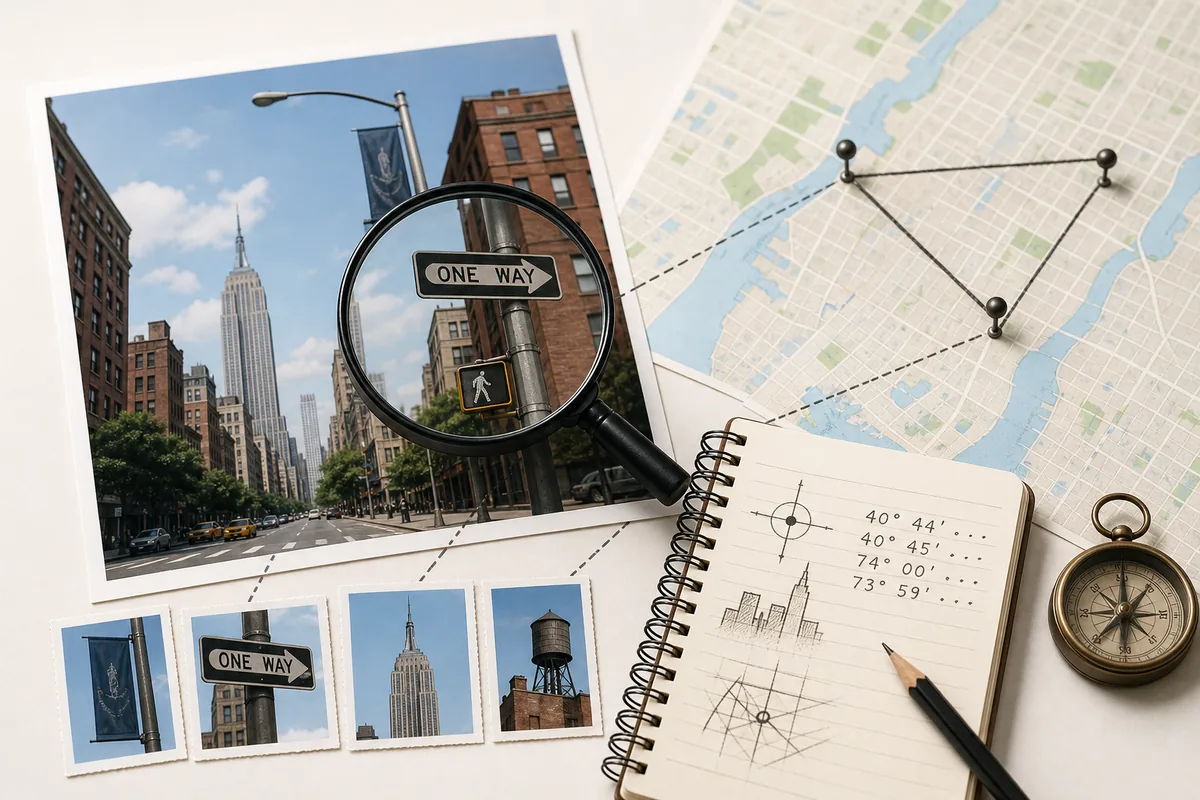
Most online photos do not keep usable GPS metadata. That does not mean the location is impossible to find; it means you need a visual workflow. Build a short evidence list before asking an AI tool or map search to guess.
Look for readable signs, business names, traffic direction, road markings, license plate style, mountains, coastline, vegetation, shadows, architecture, public transport, and weather clues. Then test the strongest clues against map search, Street View, image search, and local landmark pages.
A safe verification workflow before you trust the result
Use a layered process: metadata first, visible evidence second, map confirmation third, and uncertainty notes last. This avoids the common mistake of accepting the first plausible city or landmark suggested by a tool.
- Check EXIF GPS and capture time from the original file.
- Open the coordinate or place label in a map and compare terrain, roads, shadows, and nearby landmarks.
- Run reverse image search if the photo may already be online.
- Use Where Was This Photo Taken? or What Place Is This? when metadata is missing and visual clues matter.
- Keep a confidence level: exact match, likely area, broad city, or unknown.
Do not overclaim
If the map view does not match the image, say so. A useful location result includes confidence and the reason behind it.
Privacy and safety checks before sharing photo locations
Photo location can reveal a home, school, workplace, hotel, travel pattern, or private event. Before sharing an original image, check whether the file includes GPS coordinates and consider removing location data if the location is sensitive.
For other people's images, use location analysis responsibly. Do not publish private addresses, stalking clues, or sensitive personal information. The goal should be verification, travel memory recovery, research, or legitimate documentation.
See the step-by-step guide to remove location data from a photo before sharing.
Check the file before you guess
If the original file still contains GPS coordinates, use the Photo GPS Location Checker first. If it does not, continue with the visual clue workflow and compare the result against maps or Street View.
FAQ
References
Last updated: 2026-06-28
How to add GPS location to photos How to view photo metadata Find building location from photo