Where Is This Picture From? How to Trace a Screenshot's Source and Location
A practical, evidence-first workflow for separating the scene, the screen interface, and the original post behind a screenshot.


Table of Contents
A screenshot can show a travel photo, a map, a social post, a video frame, or a message with almost no original context. If you only run a full-screen reverse search, the status bar, buttons, captions, usernames, and black margins can overwhelm the useful content. A better answer to where is this picture from starts with an evidence map: what is visible in the scene, what was added by the app, and what the screenshot claims about its origin. The workflow below helps you find a source page, a likely location, or an honest reason that the evidence is not strong enough.
Separate the Screenshot Into Three Evidence Layers
Treat a screenshot as three overlapping records. The scene layer contains buildings, roads, landscapes, products, people, signs, and other things that were photographed or displayed. The interface layer contains a TikTok watermark, an Instagram handle, a browser title, a map pin, a chat header, a timestamp, or a share label. The source layer is the claim about where the screenshot came from: an account, article, video, message, or repost chain.
The layers can disagree. A caption may say Paris while the street sign belongs to another country. A visible username may be the account that reposted a video, not the photographer. A map screenshot may show a search result rather than the camera position. Keeping these distinctions visible prevents a plausible label from becoming false certainty. Ask where is this picture from before trusting a match.
Name the layer
Write scene clues, interface clues, and source claims in separate notes so a caption never becomes location proof by accident.
Preserve the File and Classify What You Have
Save the screenshot exactly as received before cropping, annotating, or sending it through another app. Record the filename, the person or page that sent it, the platform, and the time you saw it. A forwarded image may be recompressed, mirrored, or cropped, and those changes can remove the small text or edge details that later help you trace a source.
A screenshot is usually a new image rather than the original camera file. It normally does not inherit the camera photo's GPS coordinates, camera model, or capture date. Still, inspect the file once: some devices keep a creation timestamp, and a screenshot of a map may visibly include coordinates or a search label. Treat any file metadata as supporting evidence, not proof of the location on screen.
- Keep one untouched copy and make working copies for crops and OCR.
- Note the platform, visible handle, post date, filename, and any URL or message context.
- Check whether the screenshot shows a map, coordinates, a browser title, a watermark, or an account name.
- Label the input as photo, text post, video frame, map view, or mixed content.
- If the screenshot came from a video, request adjacent frames; a single frame may hide the only useful sign.
Crop, Read, and Search the Strongest Clues
Start with a clean crop of the main photo or video frame. Remove status bars, reaction buttons, black borders, captions, and watermarks that were added after the scene was captured. Search the full clean crop first, then search smaller crops of a landmark, sign, logo, storefront, road marker, or unusual object. A small thumbnail can still match a larger original, and a larger match often reveals the earliest credited page.
Text requires a different route. Run OCR, but manually check the result because angled, low-contrast, or stylized lettering is often misread. Put the rarest phrase in quotation marks and add a platform, language, city, or account clue. Search the words from the scene separately from the words in the overlay. A caption saying “best beach in…” is a claim; a street sign inside the photographed scene is stronger location evidence.
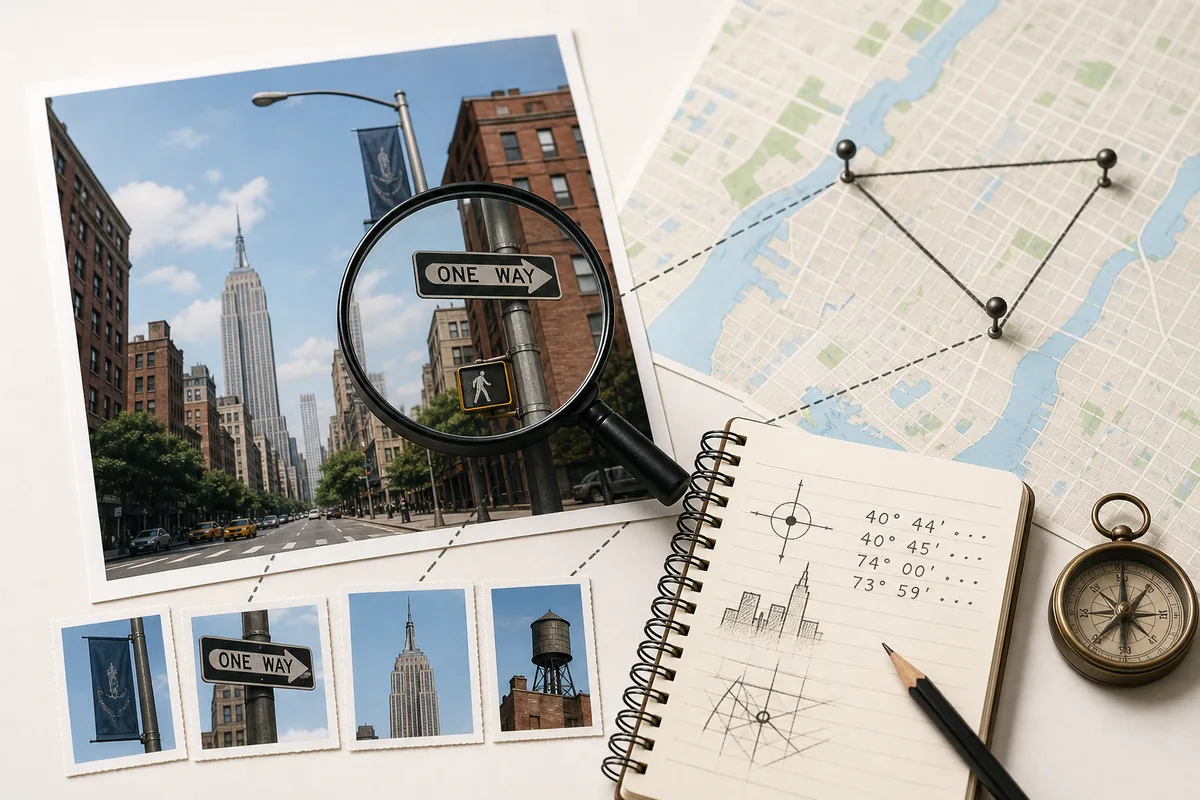
- Crop the clean scene and run one broad reverse image search.
- Crop the strongest landmark or sign and run a second, detail-focused search.
- OCR the scene text and search a distinctive phrase in quotation marks.
- Save the best candidate URLs and the exact crop that produced each match.
Use Visual Clues to Narrow the Location
A screenshot may have no searchable duplicate and still contain enough geography to produce a useful lead. Look for clues that follow local rules or remain fixed over time: road-line colors and patterns, traffic signs, utility poles, curb shapes, license-plate proportions, building materials, scripts, transit symbols, mountain silhouettes, coastlines, and vegetation. One clue is rarely decisive; a cluster that agrees is much stronger.
| Clue | Best question | How to test it |
|---|---|---|
| Street text or script | What country or venue is named? | OCR it, quote-search it, then compare the physical sign. |
| Road and traffic design | Which countries fit the scene? | Compare lane markings, signs, driving side, curbs, and poles. |
| Landmark or skyline | Which place has this fixed shape? | Search a crop, then match orientation and neighboring structures on a map. |
| Watermark or handle | Where was this post published? | Search the exact handle and trace earlier uploads or credits. |
Use clues as a chain
A road rule can narrow the country, a script can narrow the region, and a fixed landmark can narrow the place. Keep each link visible so another person can audit the conclusion.
Verify the Original Source and the Claimed Place
Finding a visually similar image is only the midpoint. For source tracing, prefer the earliest credible page that shows the same pixels, names a photographer or organization, and gives context that predates the screenshot. A repost can have more shares and a newer timestamp while still being downstream. If a page is deleted, look for an archive, a reputable article that quoted it, or another independently dated copy; do not upgrade a rumor simply because it is repeated.
For location verification, compare fixed geometry rather than mood. Check the roofline, window rhythm, road angle, bridge span, sign position, skyline direction, mountain profile, and neighboring buildings. Open the candidate in a map or Street View when available. A place name can be correct while the camera stood several streets away, and a map pin can identify a venue without proving the exact viewpoint. Then explain where is this picture from with evidence.
- Open the candidate page and compare the image pixel-for-pixel, including crop and watermark details.
- Check whether the candidate date is earlier than the screenshot's circulation and whether the date is credible.
- Match the account handle, author credit, caption wording, and surrounding context character by character.
- Open the claimed place in a map and compare fixed geometry, not only colors or weather.
- Write a confidence-rated conclusion with links to the evidence you checked.
Know the Limits and Protect Privacy
Some screenshots cannot support a precise answer. The image may be private, never indexed, heavily recompressed, mirrored, AI-generated, or too generic to distinguish from thousands of scenes. A deleted post may leave only copies without reliable dates. “No match” is a normal result, not evidence that the screenshot is fake. Report the narrowest conclusion the evidence supports: an account, a likely city, a country, a place type, or no reliable lead.
A screenshot can expose more than its creator intended. Usernames, school names, home views, map pins, notification previews, and browser tabs can identify people or sensitive places. Crop or blur private details when you share an investigative example, and analyze images only when you own them or have permission. Do not use a location result to track a person, discover a private address, or publish a sensitive facility.
A careful dead end is useful
If no source or place survives independent checks, preserve the search log and say what was tested. That is more trustworthy than a confident location built from one weak match.
The Short Answer
To answer where is this picture from, save the original screenshot, separate scene text from app overlays, crop the clean image, search distinctive words and visual details, and trace the earliest credible page. If you need the location rather than the source, combine road rules, signs, architecture, terrain, and a location tool, then verify the candidate on a map.
The strongest conclusion explains both the match and the boundary. A screenshot is a lead, not a license to expose a person or publish a private location.
Need to Check a Screenshot's Location?
Upload a screenshot to the location finder for a visual lead based on landmarks, road design, text, terrain, and architecture. Use the result as a hypothesis and verify it with the workflow above.
Where Is This Picture From? FAQ
References and Sources
Last updated: October 25, 2026
Back to the homepage