How to Remove AI Metadata From Photos: A Safe, Verifiable Workflow
Separate ordinary EXIF, IPTC, and XMP fields from provenance records, keep the original untouched, and verify the copy you plan to share.

On this page
The phrase remove AI metadata from photos sounds like one technical action, but it can refer to several different records. A generated or edited image may contain normal EXIF camera fields, IPTC or XMP description fields, software history, an AI-related source label, or a provenance manifest. The safest workflow is to identify which record you are trying to remove, preserve the original, clean a separate copy, and inspect that copy before it leaves your device.
What does AI metadata in a photo actually mean?
There is no single universal tag called AI metadata. A file may contain ordinary EXIF fields such as camera model, capture time, dimensions, and GPS; IPTC fields such as creator, caption, and rights; or XMP fields added by an editor or cataloging application. Some workflows also record that an image was generated, edited, or assisted by an algorithm. Treat these as related but separate layers rather than assuming one delete button removes everything.
A provenance system such as C2PA Content Credentials is another category. It can describe how an asset was created or modified and may be useful for authenticity and attribution. Removing ordinary EXIF or XMP tags may leave a provenance record untouched, while exporting through another application may create a new record. If your goal is privacy, say exactly what you need to hide. If your goal is to preserve attribution or provenance, do not remove it automatically.
The table below is a practical starting point. It tells you which fields are commonly visible, what a cleaner can usually change, and where a cautious conclusion is required.
| Layer | What it may contain | What cleaning can and cannot prove |
|---|---|---|
| EXIF | Capture time, camera, lens, dimensions, orientation, and sometimes GPS | A metadata tool can often remove these embedded tags, but the original may still exist elsewhere. |
| IPTC / XMP | Creator, caption, rights, keywords, software, ratings, and edit history | Export settings may remove or rewrite fields; the absence of a tag is not proof that an image was never edited. |
| AI or source labels | Application-specific generation, editing, or source notes | Names and locations vary by tool, so inspect the actual tags instead of relying on a generic checklist. |
| Provenance records | Signed claims about creation or modification history | Removing ordinary file metadata does not guarantee that every provenance mechanism is removed or invalidated. |
| Platform records | Upload account, time, URL, or service-side processing history | Local cleaning cannot delete records already held by a website, app, or recipient. |
Check the original before you remove AI metadata
Start with the most original copy you can access: the file exported by the generator, the camera original, or the untouched download. Do not clean the only copy. Make a duplicate, record the filename and hash if the image matters, and note which viewer or tool you used. That simple separation prevents a privacy edit from destroying useful evidence or the only version with a creator credit.
The first inspection should answer four questions: which metadata families are present, whether the file contains GPS, whether a software or generator name appears, and whether the image has a separate sidecar or provenance panel. A friendly photo app may show only a small subset. For an exact answer, use a local metadata reader and keep the raw tag names in your notes.
Do not infer that an image is AI-generated merely because a software field mentions an editor, or that it is human-shot because the field is empty. Metadata can be missing, rewritten, stripped during export, or added by a later application. Use it as evidence with a clear confidence level, not as an authenticity verdict.
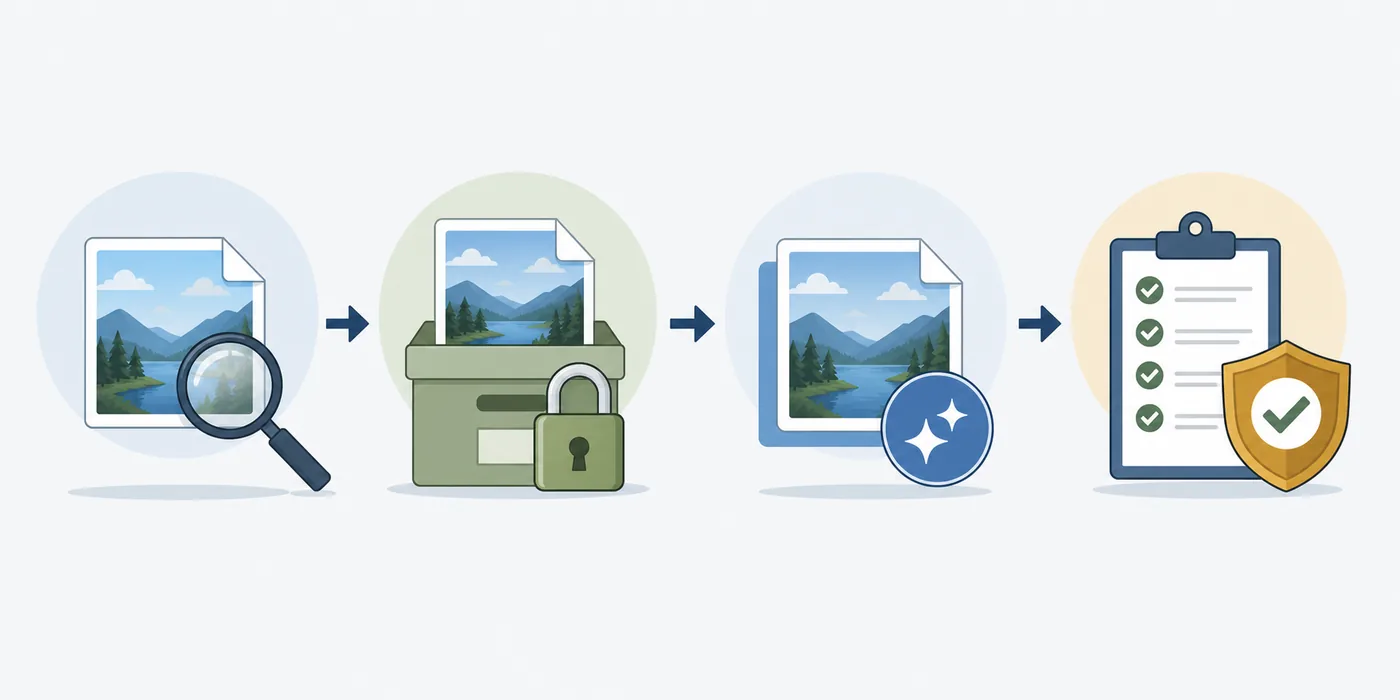
- Identify the original file and duplicate it before opening an editor that may save changes automatically.
- Record the file format, dimensions, file size, visible creator or software fields, GPS status, and the tool/date used for inspection.
- Decide whether you need to remove all ordinary metadata, only location fields, or only a particular application or AI-related field.
- Keep the untouched original in a private location and do all cleaning on the duplicate.
- Plan a second inspection after cleaning; do not treat an export dialog that says ‘remove metadata’ as the final proof.
How to remove metadata on Windows and Mac
On Windows, you can begin with File Explorer. Open the duplicate's Properties and Details panel to see the fields that Windows understands. The ‘Remove Properties and Personal Information’ action can create a copy with selected properties removed, but the visible list is not a complete dump of every EXIF, IPTC, XMP, maker-note, or provenance field. Use it for a quick privacy pass, then verify the output with a dedicated reader when the distinction matters.
On macOS, Preview and Photos expose useful information but are also selective. Exporting a new JPEG or PNG can change what is embedded, yet the result depends on the application, file type, and export options. If you are removing AI metadata for publication, create a new sharing copy, open that copy in a local metadata reader, and compare its fields with the original rather than guessing from the filename.
For a repeatable desktop workflow, ExifTool is a widely used local option. Work from a copy, save the original tag report, and use the documentation for the exact command that matches your file type and privacy goal. A broad wipe may remove copyright, captions, color profiles, or useful orientation data along with the AI-related field, so a targeted operation is safer when you need to preserve attribution.
- Windows quick pass: duplicate the file, open Properties > Details, choose the available personal-information removal option, and save the cleaned copy with a new filename.
- Mac quick pass: duplicate the file, export it from a trusted editor or Preview, and avoid overwriting the source. Check the export format and any metadata options before saving.
- Advanced desktop pass: inspect the duplicate with a local metadata reader, remove only the fields required by your policy, and save a report of what changed.
- Open the cleaned copy again and confirm whether GPS, creator, software, XMP, and AI-related fields are present, absent, or simply no longer visible to that particular viewer.
A clean export is not the same as a proven clean file
Windows, macOS, and photo apps show different subsets of metadata. Treat the second reader check as the evidence that supports your conclusion.
How to remove metadata on iPhone and Android
Phone photo apps usually make it easy to view a date, location, or camera label, but they do not always provide a full tag editor. Before sharing an AI-generated or AI-edited image, use a duplicate or export copy. On iPhone, the Share sheet may offer a location toggle for a shared photo; that helps with location privacy, but it is not a universal promise that every EXIF, XMP, or provenance field has disappeared.
On Android, the exact controls vary by manufacturer, Google Photos version, gallery app, and file format. Look for Details, Location, Export, or a metadata/privacy option. If the app only hides a location label in the library, verify the actual exported file. A screenshot can create a new image without the original file's tags, but it also reduces quality and does not erase the original or the platform record.
When the mobile app cannot show or remove the field you care about, transfer a copy to a trusted desktop workflow or use a privacy-reviewed local tool. Avoid uploading a sensitive image to an unknown online cleaner merely to inspect it. The convenience of a web service does not answer how long it stores the file or whether it keeps an upload log.
iPhone or iPad
Use a duplicate, review the photo information panel, apply the available location-sharing control, and verify the exported copy separately.
Android or Google Photos
Check Details and export behavior, then confirm whether a library label was changed or the embedded file metadata was actually rewritten.
Screenshots
A screenshot may remove the source file's embedded tags, but it creates a new file, loses information, and does not remove the original from the device or service.
Online cleaners
Read retention and processing terms first. For private images, prefer a local workflow and only upload a non-sensitive copy when necessary.
Why removing AI metadata does not erase every provenance signal
Metadata cleaning is not the same as making an image impossible to classify. A file can still contain visual clues, a watermark, a signature, a distinctive generation artifact, or a record held by the application that created or uploaded it. Removing a field also does not prove that the image was not AI-generated; it only tells you something about the current copy's embedded data.
Content Credentials and other signed provenance systems deserve special care. They are intended to communicate creation and edit history, so deleting or breaking them may reduce verifiability for the people who receive the image. If your goal is to protect a private location, remove or limit the specific sensitive fields first. If your goal is to hide AI involvement, understand that a missing tag is not a reliable guarantee of anonymity or human authorship.
When you publish work for journalism, a legal dispute, a client, or a safety-critical decision, preserve the original and keep a change log. Record which fields were removed, which tool performed the export, and what the final check could actually confirm. Never claim that a cleaned file is ‘undetectable’ or ‘anonymous’ unless you have a narrow, testable definition and evidence for it.
What a local wipe can change
Embedded EXIF, IPTC, XMP, GPS, software, and selected application fields may be removed or rewritten from the sharing copy.
What it cannot change
The original file, a website's upload history, a visible watermark, a recipient's saved copy, or a service-side account record remains outside the local file.
What remains uncertain
A blank metadata panel does not prove human authorship, no editing, no previous copies, or the absence of every provenance mechanism.
A safer claim
Say exactly what you checked: for example, ‘the exported JPEG contained no readable GPS, EXIF, IPTC, or XMP fields in the readers tested.’
Remove the smallest amount necessary
Privacy and provenance can point in different directions. Keep the original, choose a narrow cleaning goal, and do not destroy attribution or evidence without a reason.
Verify the sharing copy after removing metadata
The final check should use the actual file you intend to upload, attach, or send—not the original and not an in-app preview. Close and reopen the copy, inspect it with a second method when possible, and compare the result with your stated goal. If you removed GPS, confirm that latitude and longitude are gone. If you removed AI-related tags, record which exact field disappeared and which fields were never visible in the first place.
Check the visible image as well. Removing metadata does not remove a street sign, house number, reflection, recognizable landmark, or other information that can reveal a place. For a private location, combine file inspection with a visual privacy review. If the image is going to a social network, remember that the service may recompress it or create its own metadata after upload.
A short record makes the result reproducible: source filename, sharing-copy filename, file type, dimensions, tool and version, fields before, fields after, and any remaining uncertainty. This is more honest and useful than a generic claim that a file is ‘clean’.
- Inspect the final sharing copy with the same reader used for the original, then use a second reader or platform preview if the risk justifies it.
- Check GPS, capture dates, creator and copyright fields, software or generator fields, XMP/IPTC records, and any provenance panel available in your workflow.
- Review the pixels for faces, addresses, signs, screens, reflections, or landmarks that reveal private information independently of metadata.
- Upload only the verified copy. Keep the original private and keep your before/after notes when the image has professional, legal, or safety significance.
Privacy checks before sharing an AI-generated or edited image
Metadata is only one part of image privacy. A generated image may contain a prompt or project name in an application catalog, while an edited travel photo may reveal a home coordinate through a GPS tag, a filename, or the scene itself. Check the filename, visible details, nearby photos, and the destination platform's upload behavior before sending the file.
Do not confuse ‘remove AI metadata’ with ‘remove all personal information’. A creator name may be important for credit. A copyright field may be required by a client. A color profile may prevent an image from displaying correctly after export. Decide what should stay, what should go, and why. Then test the sharing copy on the device or service your recipient will actually use.
If you need to check ordinary photo fields first, read a photo metadata guide that explains EXIF, IPTC, XMP, dates, and GPS. If the concern is location privacy, use a separate guide to removing photo location data and verify the result with a photo GPS checker.
Use a sharing copy, not the only original
The most reliable privacy habit is simple: keep a protected original, create a purpose-specific copy, remove only what you need, and inspect the exact file before upload.