How to View Photo Metadata on iPhone, Android, Windows, and Mac
Find capture time, camera details, dimensions, authorship, and GPS clues without confusing file dates with the original photo record.


Contents
This guide explains how to view photo metadata on the devices most people already use. It covers more than GPS. You will learn where to find capture time, camera and lens details, image dimensions, editing software, copyright fields, and location coordinates—and how to tell an original capture date from a file-copy date. The safest rule is simple: metadata is a useful clue, not automatic proof.
What photo metadata can reveal before you inspect the image
Photo metadata is information stored inside an image file or alongside it in a photo library. A camera usually writes EXIF fields at capture time. Editing and cataloging software may add IPTC or XMP fields for captions, authorship, rights, ratings, and workflow notes. Your operating system also tracks file-system dates, which are related to the file rather than necessarily to the moment the picture was taken.
The distinction matters. A JPEG copied today may show today's creation date in File Explorer while its EXIF DateTimeOriginal still records a date from years ago. A photo downloaded from social media may have a new filename and no EXIF at all. A screenshot normally describes the screenshot, not the underlying image that appeared on screen.
Start with the most original version available: the camera file, the item inside the phone's photo library, or an export that preserves original metadata. Forwarded, resized, compressed, and edited copies are less likely to contain a complete record.
| Metadata type | Typical information | Main caution |
|---|---|---|
| EXIF | Capture time, camera, lens, exposure, orientation, and sometimes GPS | Fields can be removed or changed |
| IPTC | Creator, credit, caption, keywords, rights, and contact details | Often added by people or publishing systems |
| XMP | Editing history, ratings, labels, rights, and application-specific fields | May be embedded or stored in a sidecar file |
| File system | Created, modified, accessed, filename, type, and size | Copying a file can change these dates |
How to view photo metadata on iPhone, Android, Windows, and Mac
Built-in apps are enough for a first check. They usually show a friendly subset rather than every raw tag. That is often all you need to confirm capture time, dimensions, camera model, or a saved location. Use a specialist EXIF viewer only when the basic panel hides a field you need.
Menus vary by operating-system version and Android manufacturer. If a label below is slightly different, look for an information icon, Details, Properties, Inspector, or a three-dot menu while the original photo is open.
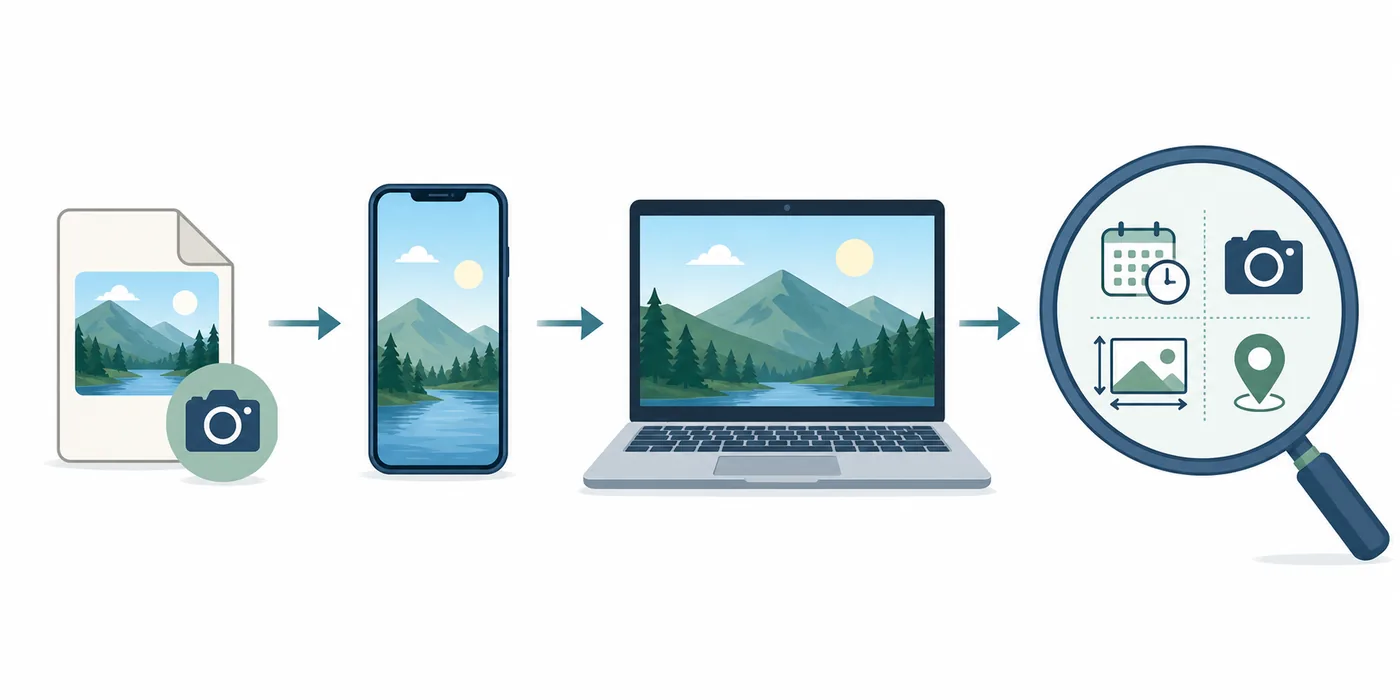
- iPhone or iPad: open the item in Photos, swipe up or tap the information button. Review the date and time, filename, device and camera settings, and map when location data exists.
- Android or Google Photos: open the image and swipe up, tap the three-dot menu, or choose Details. Depending on the app, you may see date, resolution, file size, camera, aperture, and location.
- Windows 10 or 11: right-click the original image, select Properties, and open Details. Check Origin, Image, Camera, and GPS groups. The visible fields depend on the format and installed codecs.
- macOS: open the file in Preview, choose Tools, then Show Inspector, and review the EXIF, GPS, or information tabs. Photos for Mac also exposes basic details through its information button.
- Advanced check: use a reputable local metadata reader such as ExifTool when you need raw tag names, maker notes, sidecars, or a record that the operating system does not display. Work on a copy if you plan to edit tags.
Preserve the original first
Before testing multiple apps, duplicate the file. Some editors save changes immediately and can rewrite timestamps, orientation, previews, or other tags.
Which EXIF and photo metadata fields should you check?
A full metadata dump can contain hundreds of tags, but most everyday questions can be answered with a small group. Read related fields together rather than trusting one isolated value. For example, DateTimeOriginal is more relevant to capture time than a file-system Modified date, while GPS latitude is useful only when latitude reference and longitude are also present.
Camera Make and Model identify equipment, not a photographer or location. ExposureTime, FNumber, ISO, FocalLength, and lens fields explain how the picture was recorded. Pixel dimensions describe the saved image; they may shrink after export. Software or CreatorTool can suggest that an editor processed the file, but its presence does not prove deceptive manipulation.
For capture time
Prioritize DateTimeOriginal and OffsetTimeOriginal. Compare them with DateTimeDigitized, library dates, and known time-zone context.
For location
Look for GPSLatitude, GPSLongitude, their reference directions, altitude, and GPS timestamp. Open coordinates in a map and compare the visible scene.
For camera details
Use Make, Model, LensModel, exposure, aperture, ISO, and focal length. Remember that exports may preserve or remove only some of them.
For authorship and rights
Review Artist, Creator, Copyright, Credit, and IPTC contact fields. A blank field does not mean an image is free to reuse.
How to read photo dates and GPS metadata without false conclusions
The phrase 'date created' is ambiguous. Your file manager may mean the date this copy appeared on the current device. EXIF DateTimeOriginal is intended to describe when the shutter event occurred, but a camera with the wrong clock, a missing time-zone offset, or later editing can make it inaccurate. Compare several fields and ask whether the sequence makes sense.
Location needs the same care. Valid GPS coordinates are a strong lead, but they can be absent, rounded, intentionally altered, or inherited through an editing workflow. Paste latitude and longitude into a map, then compare terrain, roads, landmarks, sunlight, and other visible details. If the image contains no GPS, use our Photo GPS Location Checker to confirm the absence before moving to visual geolocation.
Do not confuse an app's estimated place with embedded GPS. Photo libraries can group images using device history, recognized landmarks, or manually assigned locations. Read the label and export behavior before assuming the place is written into the image itself.
| Question | Check first | Cross-check |
|---|---|---|
| When was it captured? | DateTimeOriginal and time-zone offset | Digitized date, surrounding photos, event context |
| When was this copy made? | File Created and Modified dates | Download, export, backup, and message history |
| Where was it captured? | Complete GPS coordinate set | Map, visual scene, travel context, nearby photos |
| Was it edited? | Software, CreatorTool, XMP history | Pixel dimensions, export dates, visual evidence |
Why photo metadata is missing, incomplete, or different after sharing
Missing metadata is common and does not automatically indicate wrongdoing. Social networks and messaging services may recompress images or strip sensitive fields. Screenshots create new files. Editing apps can export a flattened copy. Cloud libraries may keep useful information in their own database even when the downloaded image contains less. Some formats and workflows store XMP data in a separate sidecar file.
If the panel is empty, confirm that you have the original resolution and format. Compare file size and dimensions with the sender's copy. Ask for an original-file or download-original option rather than saving a preview. For HEIC, RAW, and manufacturer-specific files, a basic viewer may lack the codec or maker-note support needed to show every tag.
If a website displays no metadata, do not upload sensitive private images repeatedly to unknown services. Prefer built-in tools or a trusted local reader. When an online tool is necessary, review its privacy policy, retention statement, and whether processing occurs in the browser or on a server.
No metadata is still a result
Record what is absent and which copy you checked. The honest conclusion may be 'this exported file contains no usable capture or GPS fields,' not 'the original photo never had them.'
Can photo metadata prove authenticity, and can it expose private information?
Metadata can support an investigation, but ordinary EXIF is editable. A plausible timestamp, camera model, or GPS coordinate does not prove that an image is authentic or unaltered. For important journalistic, legal, or safety decisions, preserve the original file, document how it was obtained, calculate a hash when appropriate, and consult a qualified forensic specialist rather than relying on one metadata screen.
Metadata can also expose information you did not mean to share: a home coordinate, school, workplace, travel pattern, device model, author name, or copyright contact. Review the original before publishing. Our guide to removing location data from a photo explains privacy-safe options, while the geotagging guide explains how deliberate location edits affect exported files.
Removing metadata changes the evidence available to future viewers, but it does not erase information already copied by a platform or recipient. Likewise, a platform may retain account and upload records even when the public image no longer contains EXIF.
A practical workflow to check photo metadata and document the result
Use a repeatable workflow when the answer matters. It prevents you from mixing fields from different copies or overclaiming what a tag means. Keep the original read-only, note the tool and date used, and save a small report rather than editing the source file.
For location questions, metadata is only the first branch. If GPS is missing, continue with visible signs, architecture, terrain, reverse image search, and map comparison. The complete photo-location guide covers that second-stage process.
- Identify the most original copy and make a working duplicate.
- Open the built-in information panel and record capture time, dimensions, camera, software, and GPS fields that are actually present.
- If needed, inspect the duplicate with a trusted local EXIF reader and preserve the raw tag names.
- Separate embedded EXIF/IPTC/XMP values from photo-library labels and file-system dates.
- Cross-check date and coordinates against the image, nearby files, maps, and known context.
- Write a confidence statement: confirmed by multiple signals, plausible but unverified, conflicting, or unavailable.
- Remove sensitive metadata from the share copy while retaining the untouched original privately.
Check location fields, then decide what to share
If your main question is whether the photo contains coordinates, open the GPS checker. If the file exposes a private place, make a separate share copy and remove location data without overwriting your original.