When Was This Photo Taken? How to Find a Photo's Date
Check the strongest surviving evidence—from EXIF and file dates to publication history and visual clues—without treating an upload date as the moment the camera captured the scene.

On this page
If you are asking when was this photo taken, do not begin with the newest date shown in a file manager or social-media post. A single image may have a camera capture date, a digitized date, a file-copy date, an edit date, and several publication dates. This guide shows how to find the strongest date, what to do when the original metadata is gone, and how to report an estimate without claiming more precision than the evidence supports.
Quick answer: which date should you trust first?
For an original JPG, HEIC, or camera file, check EXIF DateTimeOriginal first. It is intended to describe the moment the image was captured. If the file also contains OffsetTimeOriginal, the time zone makes the value easier to interpret. DateTimeDigitized can matter for scanned film, while DateTime and DateTimeOriginal may describe different stages of a digital workflow.
Next, compare that value with nearby photographs, the known event, travel records, weather, or a camera clock that was known to be wrong. A plausible timestamp is useful evidence, not automatic proof: EXIF can be edited, exported incompletely, or copied from another workflow.
If you only have a downloaded image, a screenshot, or a social-media copy, the available date may be the upload or publication date. That can tell you the image existed online by a certain time, but it does not necessarily tell you when the camera captured it. For a broader metadata inventory, see the photo metadata guide.
| Date or clue | What it may tell you | What it cannot prove by itself |
|---|---|---|
| DateTimeOriginal | The camera's recorded capture time | That the camera clock or metadata was accurate |
| DateTimeDigitized | When film or another source was digitized | When the original scene happened |
| File created or modified | When this copy was created, saved, or changed | When the camera took the photo |
| Page or post date | The image was published or visible by that date | That publication was the original capture |
| Visual clues | A likely season, technology era, or before/after window | An exact day or minute |
Use the narrowest honest claim
Say "captured on" only when the original timestamp is supported. Otherwise say "this copy was uploaded by", "the image appears to predate", or "the capture date is unknown."
How EXIF can reveal a photo's capture date
EXIF is a family of tags commonly embedded by cameras and phones. The fields most relevant to a date question are DateTimeOriginal, OffsetTimeOriginal, DateTimeDigitized, and sometimes GPS time. A metadata reader may also show the camera model, software, lens, dimensions, and orientation. Those fields help you understand the file's history, but they are not a tamper-proof chain of custody.
DateTimeOriginal is normally the best starting point for a digital photograph. OffsetTimeOriginal can distinguish 09:30 in one time zone from 09:30 in another. If the offset is missing, do not silently convert the time to your own local zone. For scanned photographs, a digitization date may be newer than the event in the picture. For an edited export, software and file dates may describe the export rather than the shutter press.
A full EXIF report can contain many tags, so preserve the raw names and values when the question matters. The official ExifTool documentation is useful for understanding tag names and supported formats. Work on a copy and keep the original unchanged.
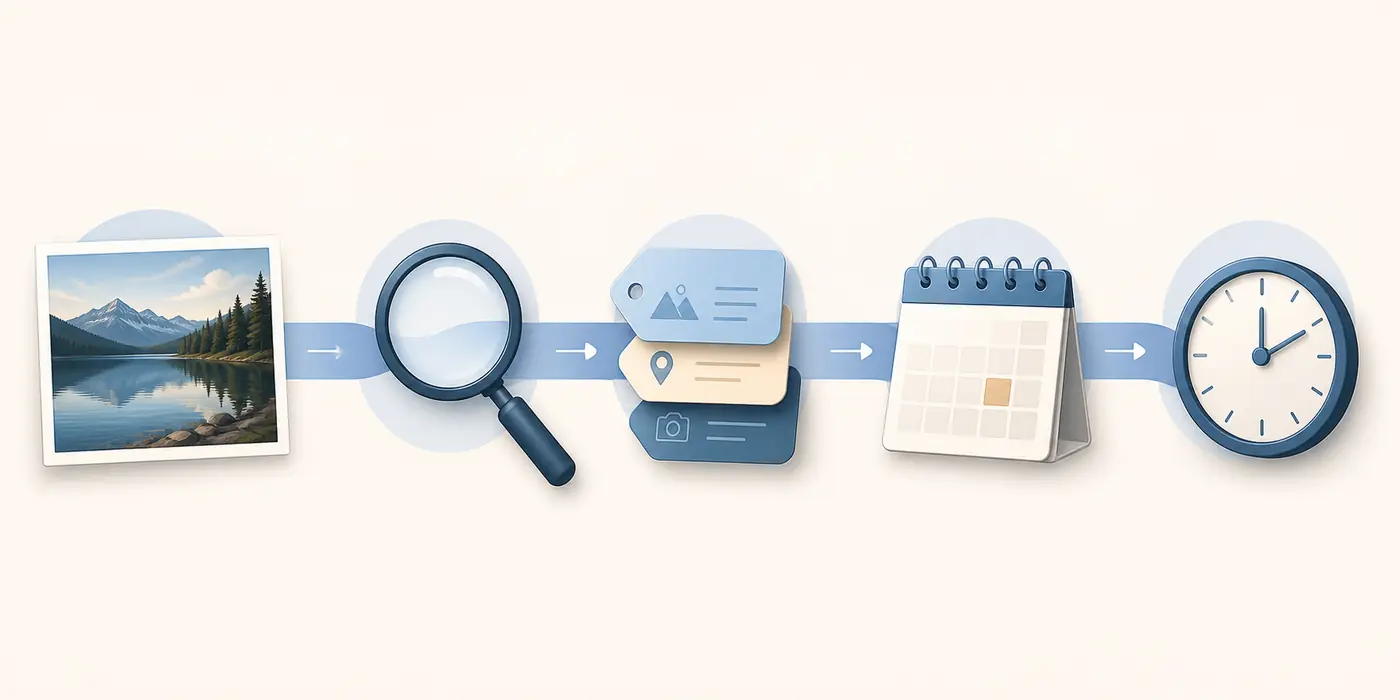
DateTimeOriginal
The first tag to inspect for a digital camera capture. Record the value exactly as stored.
OffsetTimeOriginal
The time-zone offset helps avoid treating a local clock value as a universal time.
DateTimeDigitized
Often more relevant to scanning or conversion than to the original event.
File and software dates
Useful for the history of this copy or export, but not a substitute for capture metadata.
Metadata is evidence, not a guarantee
A complete-looking EXIF block can still be edited. Confidence increases when the timestamp agrees with independent files, events, or a verified source history.
How to check when a photo was taken on each device
Use the original file whenever possible. Built-in photo apps are enough for a first pass, but they may show a library label instead of every embedded tag. If a menu name differs on your device, look for Info, Details, Properties, Inspector, or the three-dot menu.
Do not edit or resave the only copy before recording its metadata. Some apps update orientation, thumbnails, software tags, or file dates as soon as they export.
- iPhone or iPad: open the original in Photos, swipe up or tap the information button, and record the displayed date, time, device, and location. If you need raw tags, export the original rather than a screenshot of the info panel.
- Android or Google Photos: open the image and swipe up, tap the three dots, or choose Details. Compare the shown date with the file's embedded EXIF when the app offers both a library label and file information.
- Windows: right-click the original, choose Properties, and open Details. Check the Origin, Image, Camera, and GPS groups, then separately note Created and Modified in the file system.
- macOS: open the image in Preview, choose Tools and Show Inspector, and review the EXIF and GPS panels. Photos for Mac may display library information that is not all embedded in the exported file.
- Advanced local check: use a trusted local EXIF reader such as ExifTool when a built-in panel hides DateTimeOriginal, an offset, maker notes, or a sidecar XMP file. Save the report separately from the original.
| Step | Record | Why it matters |
|---|---|---|
| 1. Identify the copy | Filename, format, dimensions, and source | Different copies can contain different dates |
| 2. Read the embedded tags | DateTimeOriginal, offset, digitized date, software | These are closer to the file's creation history |
| 3. Read system dates | Created, Modified, downloaded, or exported | They describe this copy, not necessarily the capture |
| 4. Compare context | Nearby files, event, travel, weather, and source page | Independent agreement raises confidence |
Why a photo's date disappears after sharing
Missing metadata is common and is not, by itself, evidence of deception. Messaging apps and social networks may recompress an image or remove privacy-sensitive fields. A screenshot creates a new file. An editor may export a flattened copy. A cloud photo library may know a date in its own database even though the downloaded file contains little or no EXIF.
If the date panel is empty, check whether you have a preview, a screenshot, or a reduced copy. Ask for the original file or use an attachment mode that preserves the file rather than saving an inline preview. RAW workflows can also store important information in an XMP sidecar rather than inside the image itself.
A filename can provide a weak clue, especially when a camera or archive uses a sequential naming pattern. It cannot prove the capture date: files can be renamed, copied, sorted, or uploaded long after they were created. The same rule applies to a folder date or a cloud upload timestamp.
| Copy type | Often retained | Common limitation |
|---|---|---|
| Original camera file | EXIF capture date and camera fields | Camera clock or tags may be wrong |
| Edited export | Some EXIF, export date, software | Original tags may be rewritten or removed |
| Social-media download | Publication context or page date | Capture metadata is often stripped |
| Screenshot | Screenshot time and screen content | It dates the screenshot, not the displayed photo |
| Cloud-library export | Library labels or partial metadata | Database dates may not be embedded in the file |
Record absence precisely
"This downloaded copy has no DateTimeOriginal" is a useful finding. It is different from claiming that the original photograph never had a capture date.
Use web publication dates as a timeline clue
When the original file is unavailable, research the image's publication history. A reverse image search may find a news article, archive, portfolio, social post, or product page that shows the image by a known date. The page date can establish an upper bound: the image existed in that form no later than the publication or upload time.
Do not confuse the first page you find with the first time the image was created. Reposts can be older than the page, page dates can be updated, and a caption can be copied without verification. The image source guide covers how to compare page context, captions, and repeated claims.
If a page is important, save the URL, visible date, caption, author, and a hash or local copy according to your research policy. Use archive or official source evidence where available. A web timeline is strongest when several independent pages agree and the image itself is unchanged.
- Search the full image first and save the exact page title, URL, visible date, and caption.
- Repeat with a distinctive crop, watermark, sign, or filename when the full image has weak matches.
- Compare independent pages instead of counting copies that repeat one unsourced caption.
- Separate the date a page published the image from any claim about when the camera captured it.
- Write the conclusion as an upper bound, lower bound, likely range, or unknown when exact evidence is missing.
Estimate a photo's era from visual clues—carefully
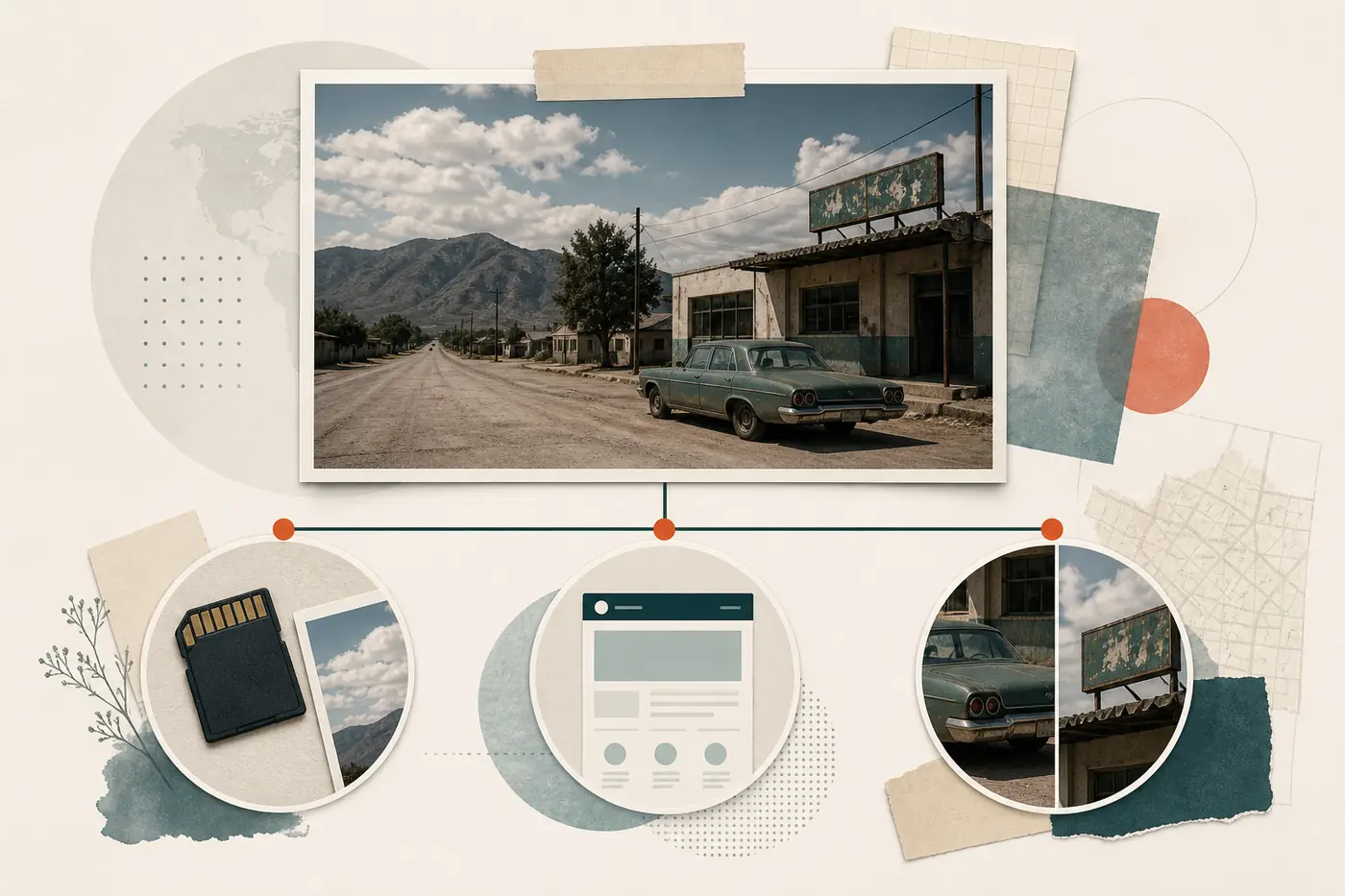
If EXIF and publication history are missing, the image itself can still provide a rough time window. Look for technology, vehicle models, road signs, store branding, building changes, fashion, packaging, construction stages, seasonal conditions, and the camera's image quality. Compare fixed details with dated official records or archived street imagery when the location is known.
Visual dating is an estimate, not a timestamp. A vintage object can be used as decoration, a film scan can be digitized today, and an old-looking filter can imitate an earlier period. Avoid choosing a precise year simply because the color grade feels historical.
When the location is also unknown, keep the questions separate. The photo location guide explains how signs, buildings, terrain, and maps can identify a place; this page focuses on when the image was captured.
| Clue | Useful for | Main caution |
|---|---|---|
| Vehicles and devices | A likely earliest or latest period | Old products can remain in use or appear as props |
| Signs, logos, and packaging | A dated branding window | A sign may be reproduced, translated, or misread |
| Construction or landscape | Before/after ordering | Changes may be seasonal or temporary |
| Image quality and style | Camera or editing context | Filters and later scans can mimic an era |
| Weather and clothing | Season or event context | They rarely identify a calendar date alone |
How to record the answer and confidence level
A useful answer states what was checked, which copy was used, and how precise the conclusion is. Keep the original file untouched, write down the tool and date of inspection, and store screenshots or reports separately. If the question matters for journalism, a dispute, or safety, preserve provenance and consult a qualified specialist rather than relying on a web article alone.
Use confidence labels that match the evidence. A timestamp supported by the original file and nearby photos is different from a date inferred from a repost. If clues conflict, report the conflict instead of averaging the dates into a false precision.
- Name the exact copy: original camera file, edited export, download, screenshot, or cloud export.
- Record DateTimeOriginal, offset, digitized date, file dates, software, dimensions, and any missing fields.
- Compare the result with a known event, nearby files, page history, or independent visual evidence.
- Choose a conclusion: confirmed capture date, probable date range, earliest known publication, visual estimate, or unknown.
- For a private image, remove sensitive metadata only from the copy you will share and keep the original secure.
A transparent unknown is better than a guessed day
The strongest answer may be "the original capture date cannot be verified, but this copy was online by June 2024." That is more useful than presenting a file-copy date as fact.
Privacy limits when checking a photo's date
EXIF can include more than a timestamp: GPS coordinates, device model, owner name, serial-related fields, software, and a travel pattern may be present. Before uploading a private image to an online viewer or sharing a research copy, review what the file contains and how the service handles uploads.
For sensitive images, use built-in or local tools first. If you need to publish a screenshot of metadata, redact names, coordinates, filenames, and account identifiers. Removing metadata from a new copy does not erase copies already held by a platform or recipient.
Need a fuller metadata check?
If the date question leads to camera, GPS, or software fields, open the metadata guide for a deeper inventory. If you are trying to establish where the image came from, keep publication history separate and use the image-source workflow.